What you can bring with you
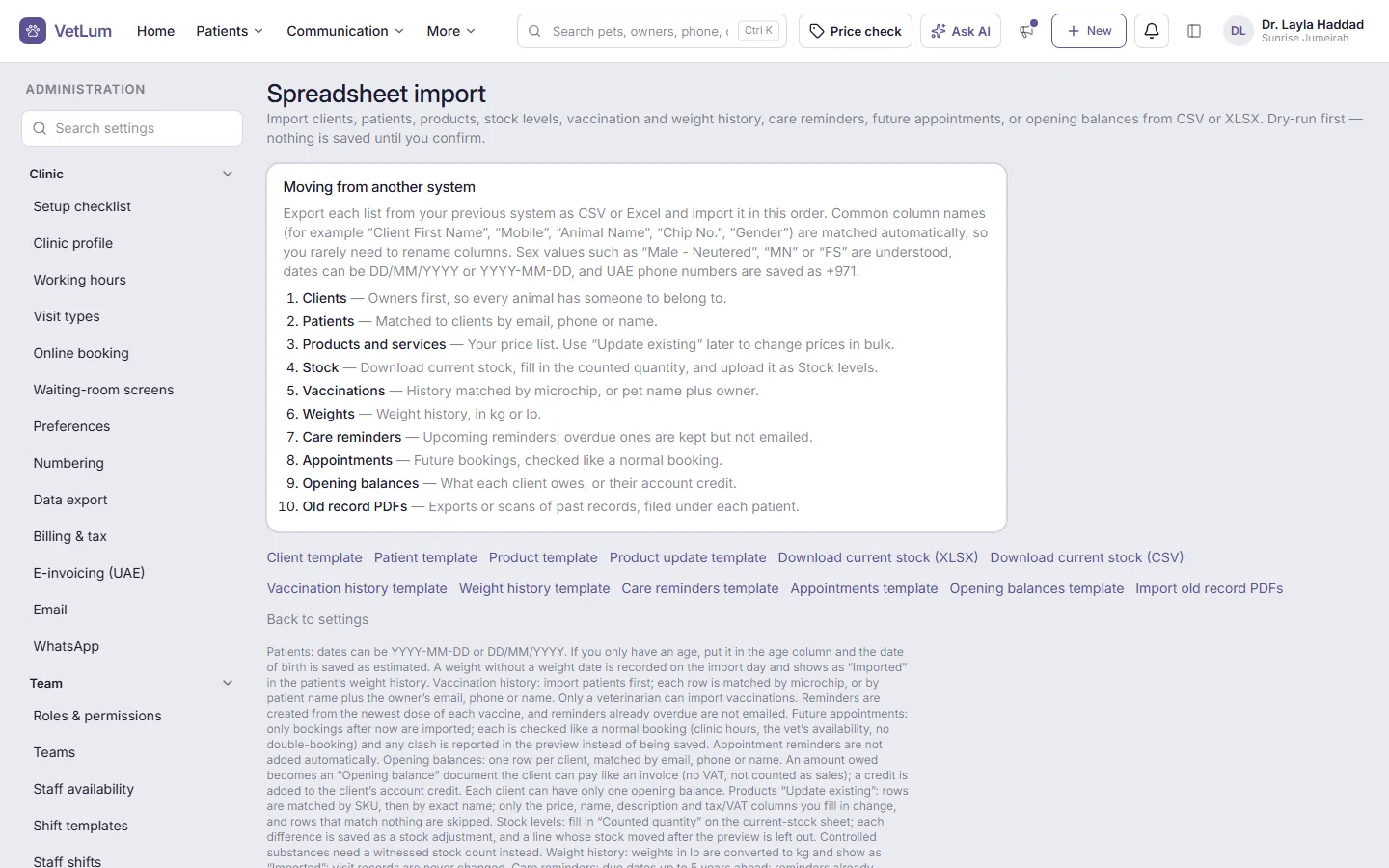
If your current system can export spreadsheets, you can move. VetLum imports CSV and XLSX files, one list at a time:
- Clients and patients
- Products and services, with prices and VAT
- Stock levels
- Vaccination and weight history
- Care reminders and upcoming appointments
- Opening balances
- Old record files as PDFs
How the move works
- Export from your old systemA spreadsheet per list is enough. Templates are on the import page. Leave the import type on Detect automatically and AI works out what the file is and which column is which; you check its choices before anything is saved. It only sees column names and the kind of values in each column, not your clients' details. Dates can be DD/MM/YYYY or YYYY-MM-DD, and UAE phone numbers are saved as +971.
- Import in the recommended orderClients, patients, products and services, stock levels, vaccinations, weights, care reminders, appointments, opening balances, then old record PDFs.
- Preview before anything is savedA dry run shows what will be created, with sample errors and skips to fix first. Nothing is saved until you confirm.
- Bring in old recordsUpload PDF exports or scans. Each file is matched to a patient by a microchip number in the file name, or by the owner's UAE mobile number plus the pet's name, for example Luna 0501234567.pdf.
- Continue your numberingSet the next client and patient numbers so new records carry on from your old system. Numbers only move forward, so they are never reused.
One row per pet? That's fine
Many systems export one row per pet, with the owner's details repeated on every row. Choose Clients and patients (one row per pet) and VetLum groups the rows by owner, by email, then phone, then full name. Each owner becomes one client and each row adds a pet. If an owner already exists, the pet is added to that client. The preview shows how many new clients will be created.
If the owner's name is in one column, map it to Full name: titles such as Mr, Mrs or Dr are dropped and the name is split for you.
If something looks wrong
Open the import and click Undo this import. Clients and patients it created are archived, not deleted, and anything that already has visits, invoices or other history is kept and listed with the reason. To correct client names after an import, re-import the list with Update existing; the preview lists every change before it is saved.
We help you move
Prefer us to do it? Send your exports to info@vetlum.com and we will import them with you, then walk your team through set-up. Step-by-step guides with screenshots are built into the app.
A practical tip: import clients, pets and history first, check a few familiar patients, then bring in appointments from your go-live date and opening balances when you close the old system. See also what VetLum covers for UAE clinics.